Databases
Last updated: May 13, 2026
Database configuration, sourcing and maintenance.
Available databases
Madaster distinguishes between 3 types of databases, which are listed in the left-hand navigation list
- Verified / System databases
Madaster is connected to various official data sources provided by officials from different countries, e.g. Eco-Platform, EPEA, KBOB, Nationale Millieu Database, Ökobaudat.
*Madaster and Madaster C2C where the first databases the platform offered to our founding partners. Since those only contain very limited material information we recommend to switch to other databases (e.g. the ones from EPEA). - Supplier databases
Provide product information straigth from the Producers themselves. - Account databases
These individual customer databases are created within the respective accounts for each user’s own projects and are not publicly accessible.
Creating Databases
Supplier
Manufacturer can add a New database
User
Account databases for normal users can be added at each level within the own account (account / folder / object) since the account structure in Madaster is flexible and customizable to suit your preferences. The platform allows several folders per account, which may contain subfolders or buildings/infra objects. To support this structure in terms of materials and products, it is possible to create and use one or multiple databases.
- Database at account level
A database on this level can be used by all underlying folder levels and objects within the account. The database can also be shared with other accounts. - Database at folder level
A database on this level can only be used by objects in the selected folder and underlying levels. The database can also be shared with other accounts. - Database at object level
A database on this level can only be used by the selected object/project. This database CANNOT be shared with other accounts.
Users can add a New database
Database configuration
User
The configuration options for account databases are limited to
- give a name, logo and description
- decide whether it should be set as default selected database on upload
- decide whether inactive products should be shown by default in the database overview
- decide whether to use the product names as search criterion
for the automatic mapping on upload - decide whether it should be restricted to selected input databases for the creation of components.
Supplier
Manufacturer databases serve a different purpose and therefor differ in the options or properties to configure.
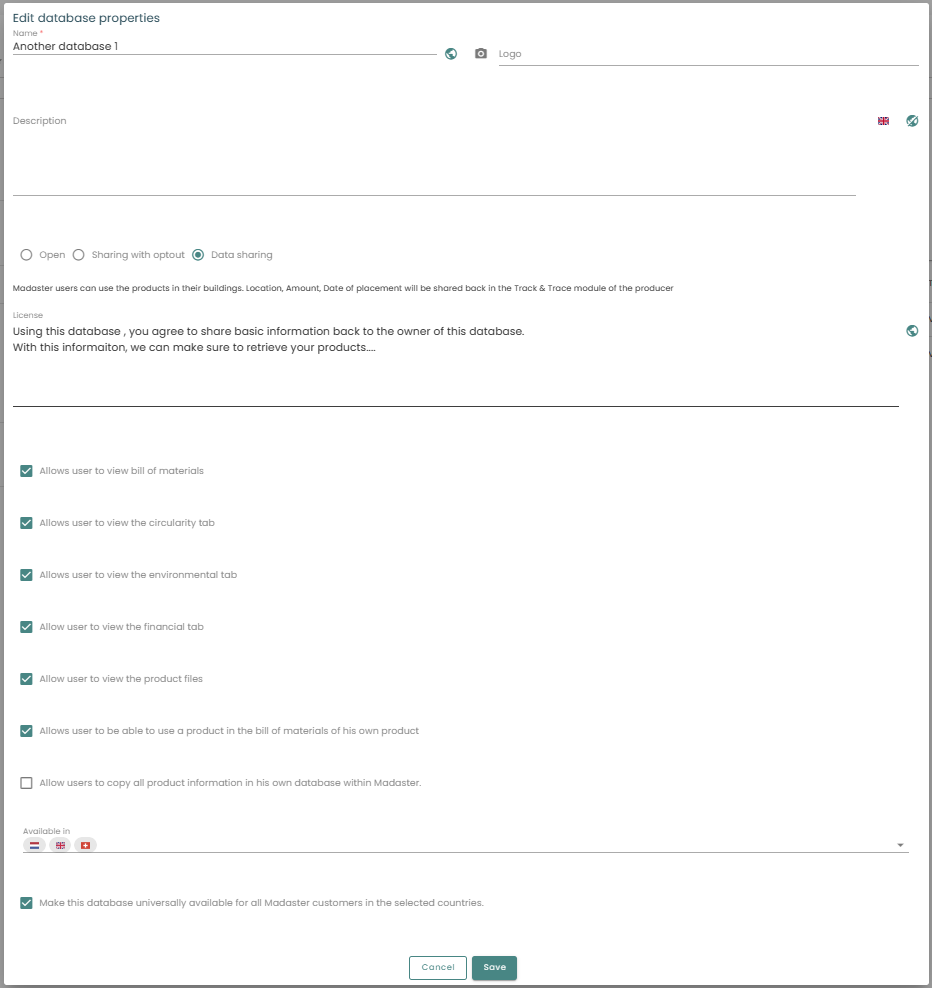
- Give a name, logo and description
either in a language that is valid globallyor differ according to the platform’s language settings . - Decide whether inactive products should be shown by default in the database overview.
In active products could be dataset were the EPD is expired or a new productversion is on the market. Those might not be available anymore but still built in in existing buildings/objects. - Decide whether to use the product names as search criterion
for the automatic mapping on upload. - Decide whether it should be restricted to selected input databases for the creation of components.
If the feature Track&Trace is enable within your account you can decide how you want your product data to be shared. Only if the information is provided will it be possible to track your products in the T&T module.
- Open = Madaster users can link product information to the elements in their objects without having to share information about their objects in return.
- Sharing with optout = Madaster users can link product information to the elements in their objects, but have to actively choose if they want to share information about their objects in return.
- Datasharing = Madaster users can only link product information to the elements in their objects if they share information about their objects in return (esp. location of the object, amount of the product, date of placement).
This option allows you to enter a license agreement that explains to users how the object data they share will be used.
Next is a set of checkboxes, all regarding the Product Information of the products in your database. You can set whether or not the users:
- may see a Bill of Materials
- can see the Circularity tab
- can see the Environmental tab
- can see the Financial tab
- can see the Product files
- can use the product in their own Bill of Materials
to e.g. create a multi layered product or component in their own database. - can copy all product information in their own database
to e.g. create a product similar to yours or to enter some discrepancies.
Finally, you decide when —or whether— you want to make the database available to all platform users in which countries. (For example, where are your products’ EPD data recognized as valid?)
The database configuration can be adjusted at any time in the Database tab using the button Edit database properties
Products
For detailed information about products please see the Products page.
Note: Your database should be maintained on a regular base to make sure your products are still up to date. The information coming from your database will help keeping the calculations and information on objects of high quality.
Adding products
The database and its products can be filled in various ways, e.g. manually, via an API, via an excel, via copying information or soon via AI upload. For detailed information see here.
The following product information is valuable in the context of the platform’s analyses:
- Product information (name, type, service life, density, functional unit, composition)
- Circularity (material origin, detachability, material recovery)
- Environment (environmental information according to EPD)
- Search criteria (for automatic matching with specific material/product descriptions)
- Financial (rates for transportation and refurbishment costs)
This configuration allows you to create both monolithic products and multilayer products (e.g. Products with a Bill of Materials or Components).
View, edit, and delete products
For existing products there are various customization options are available via the database overview.
- Edit product
- Delete product
- Create a new version of the product
- View product
- Expand condensed product information
Import/Export Database
Once this feature is enabled, you can import or export products and materials from a database using an Excel template. In the Dossier tab simply click in the toolbar Import/Export
User permission
- Contributors can add and modify products in database on the platform.
- Administrators can additionally manage users and share the database with additional accounts.
Add API Token
For more information on how to add a Token and use the Madaster API, visit our API Documentation