Managing the account
Last updated: May 18, 2026
Organize Source Files, General Documents, Projects, Databases and Folders
Types of files
On every level – Account, Folder, Object, there is a Dossier where you can store and organize your documentation, links and source files. On Account and Folder level you may Upload
Within the Madaster Platform a distinction is made between two types of files, namely:
- Source files: the files with which the materials and products and the quantities of an object are delivered to be registered in Madaster. These include IFC files, Excel templates and (coming soon) virtual files for manually added individual elements.
- General documents: static files that contain information about the object and can be added to the project file in Madaster, but which cannot be used to serve as a source file.
Organize Source Files
In the Dossier of an object you can add files via the Upload
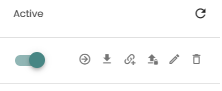
- View details
on the quality of the source file and the quality of matching process. - Download the file
to your computer. - Enrich the file
directly from the dossier. - Add a new version
of the specific source file to add new or changed information to your modell while keeping the process made so far. - Edit the file
to change the folder or tags of your source file. - Delete the file
is an action which you can not undo.
If you don’t want a file to not be considered in the calculation, you can change the status to ‘inactive’. The explanation of this can be found under What does the status ‘active’ mean?
Use the toggle switch next to the files name or check the boxes of multiple files and use the buttons appearing on the bottom of the page.
Presets for Source File Uploads
If the BIM Modell of your project wasn’t created by following strictly the buildingSMART Standards Madaster offers the ability to create Presets for Uploads to specify in advance which individual properties contain the values required for calculations.
Detailed information can be found under Upload presets.
Organize General Documents and External Links
Via the Upload
The following folders are available:
- Contracts & Warranties
- Drawings & Calculations
- Productspecs & manuals
- Suppliers & Certificates
Search for files in the Dossier
In the Dossier, you can find specific files either by using the search function on the right-hand side to Filter on keyword - by searching for file names or tags - or by browsing through the Folders displayed below.
If you added Tags to your files when uploading them or via the Edit the file
Manage objects

Move
If required, projects within an account can be moved from one folder to another to adjust your folderstructure or the access right.
In the General tab of the relevant object, click Move
Archive
If a project is finished or you want to save a certain status you have multiple options to archive an object.
- In the General tab of the desired object click Archive
. - A dropdown menu with the following options will open
- Deactivate object
- Partial archive
- Full archive
- Deactivate object
- When selecting Full archive or Partial archive, a pop up screen with two parameters will appear. Version name which is obligatory, and Version identifier which is optional. You will also be asked to choose which type of passport you want to configure and archive along with your object (optional choice).
A Full archive represents the final state of an object — a “snapshot” of its status at a specific point in time. This involves creating a complete copy of the entire object, including all elements and active files, as well as an archive database into which all linked products (from system databases as well as manufacturer and individual databases) are copied. This archive remains unchanged and thus represents a secured state that cannot be altered retroactively. The fully archived object can then be copied to another Madaster account.
A Partial archive could represents the final state of an object — a “snapshot” at a specific point in time. This functionality creates a copy of the entire object, including all elements and active files, as well as an archive database containing only products from manufacturer and custom databases; products from system databases are not included here. The partial archive also remains unchangeable and thus represents a secured state that cannot be altered retroactively. The partially archived object can be copied to another Madaster account.
Note: System databases consist of verified products that are available globally to all users. They are often identified by a blue checkmark next to their name. Examples of system databases include “EPEA”, “IBU”, “NMD” and “ÖKOBAUDAT”.
When an object is Deactivated, all calculations for that object are paused at the time of deactivation. No duplicate object is created, but the deactivation can be undone by the user itself. Inactive files are not lost, but they cannot be edited until the object is reactivated.
All archive types are counted as one archive in the Subscription tab. To Reactivate
Transfer
If you want to copy an active object to another account (e.g. in your client’s or the buyer’s account) you can transfer it while you can choose to archive it within your own account at the same time. Please ensure in advance that you have active rights in both accounts and that there is at least one unused object in the Subscription of the target account left.
- In the General tab of the desired object click Transfer
. - A dropdown menu with the following options will open
- Copy to another account and create partial database
- Copy to another account and create full database
- Copy to another account and create partial database
- Another pop-up window will appear, displaying a folder tree showing all accessible folders. Select the desired target folder, choose if at the same time a passport should be generated and whether the original in your account will be deactivated after the transfer.
Copy to another account and create partial database
Copy to another account and create full database
If you want to copy an archived object to another account got to the General tab of the archive and click Copy object to other account
Split objects
The ‘Split’ function allows you to devide an object into individual parts (e.g. terraced houses, storeys, flats). This requires the elements in the source file to contain ‘object number(s)’ so that the Madaster platform can distinguish between different groups.
So, if the feature is enable for your account go to the General tab of the relevant object, click on Split the object
It is recommended that you only split an object once it has been fully enriched, but you can adjust the individual linking later too. Furthermore an archive is required for each object to be separated. Please adjust your subscription if necessary.
Set up designs
The button Design
Up to 3 designs can be added per object at no cost. Each design model is displayed in the navigation tree on the left side below the initial building. Designs cannot contain designs themselves. They are not considered a full-featured object and therefor cannot be moved, archived, or transferred to another account. If you want to continue with the design as the primary version of the object click the button Make Primary
Note: When creating designs, only active source files are duplicated. Before creating a design, make sure to check which source file(s) are activated.