Enrichment
Last updated: September 22, 2026
Tips for the enrichment process.
To ensure a comprehensive assessment of an object on Madaster, each element should have at least a classification and sufficient geometry information, and should be linked to a product dataset. For further information see also Quality control.
To check the results of the automatic mapping during the upload of the source file in detail, switch to the Dossier tab on object level and click
-
either on the source file and then the button Enrich
(Manual) OR
-
straight on the enrichment icon
on the right next to the source file.
Linking elements
Elements can be linked by automatic mapping or by manual mapping.
1. Automatic mapping
During the Automatic mapping the platform scans each element for certain information it could link on, which are basically:
- Madaster Id - If there is a property with the Madaster ID of a specific product, the mapping process will prioritize this information.
- External Id - This corresponds to the Madaster ID; however, if both are provided, the Madaster ID takes precedence.
- Material/Product name - The material name is mapped if the product has the exact same name in the database or if similar terms have been entered as search criteria for a product.
Automatic mapping occurs when uploading a new file OR when it is manually restarted by clicking on the source file and then Enrich
2. Manual Mapping
Alternatively Manual Mapping allows to link each element individually or several elements at once. Check the box next to the element(s) and click the icon
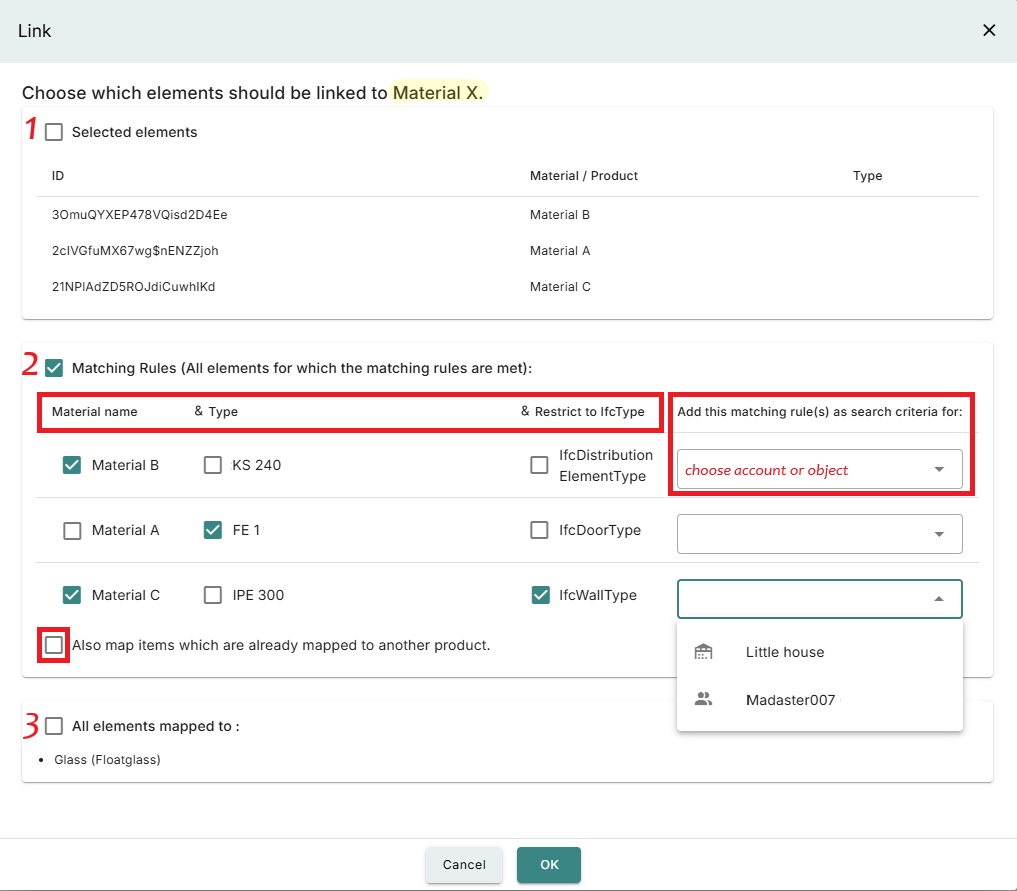
Another window will open showing the following options, which you can choose by checking the corresponding box.
-
Simply link the selected elements. Regardless of whether they are already linked or not.
-
Link elements according to your own Matching Rules and save these rules for future automatic mapping. You decide whether to link based on the material name OR the type name OR the IFC type OR EVEN a combination of several criteria.
Note: Using the drop-down list on the right, you can choose whether to save this rule for future use – either for this specific object or for the entire account. The second option is useful if your projects are frequently modelled in the same way.
Note: By checking the last box you can also include elements that are already linked.
-
Link all elements mapped to a specific product.
Note: Select this option if, for example, while planning you wish to replace a product with a more environmentally friendly or circular alternative or while building a former planned product is replaced by another.
Search within Enrichment
If you are looking for specific elements you will find various filters in the navigation list on the left as well as a search field.
In the search field on the top left you can look for
- element names,
- typenames,
- element IDs,
- material names or
- content within the comments on the elements.
Note: If you haven’t used a comment in your IFC source file yet you can define any Property as comment via the Upload Preset. This way you can enable other information to become searchable.
Save your progress
Especially when working on long-term projects or in a team, it can be helpful to save a separate backup of the current and final version of a project.
Of course, there is a backup of the entire platform to protect it from complete data loss due to a technical error. Furthermore, accidentally deleted items can be restored by our support team within 30 days before they are permanently deleted. However, if data within a project is overwritten (e.g., by automatic remapping), it is not possible to restore the previous state.
Recommendations for Data Backup
-
Use the archive feature to save intermediate versions of ongoing projects and/or the final state. Our support team can use an archive to restore at least this version as an active object.
For information on setting up an archive, see Manage objects. -
Alternatively, you can create a design as an intermediate version or to test the impact of mapping other products.
For information on setting up a design, see Manage objects. -
Another alternative is to upload the source file as a new version and keep the “older” version in the dossier’s file tree. The elements of each file could be mapped differently.